 PearPass
How To Save And Use Passkeys
Save passkeys from websites directly to your PearPass vault and use them to sign in.
Save a passkey
Start passkey creation on the website
On a website that supports passkeys, start the passkey setup flow. The PearPass extension dialog opens automatically.
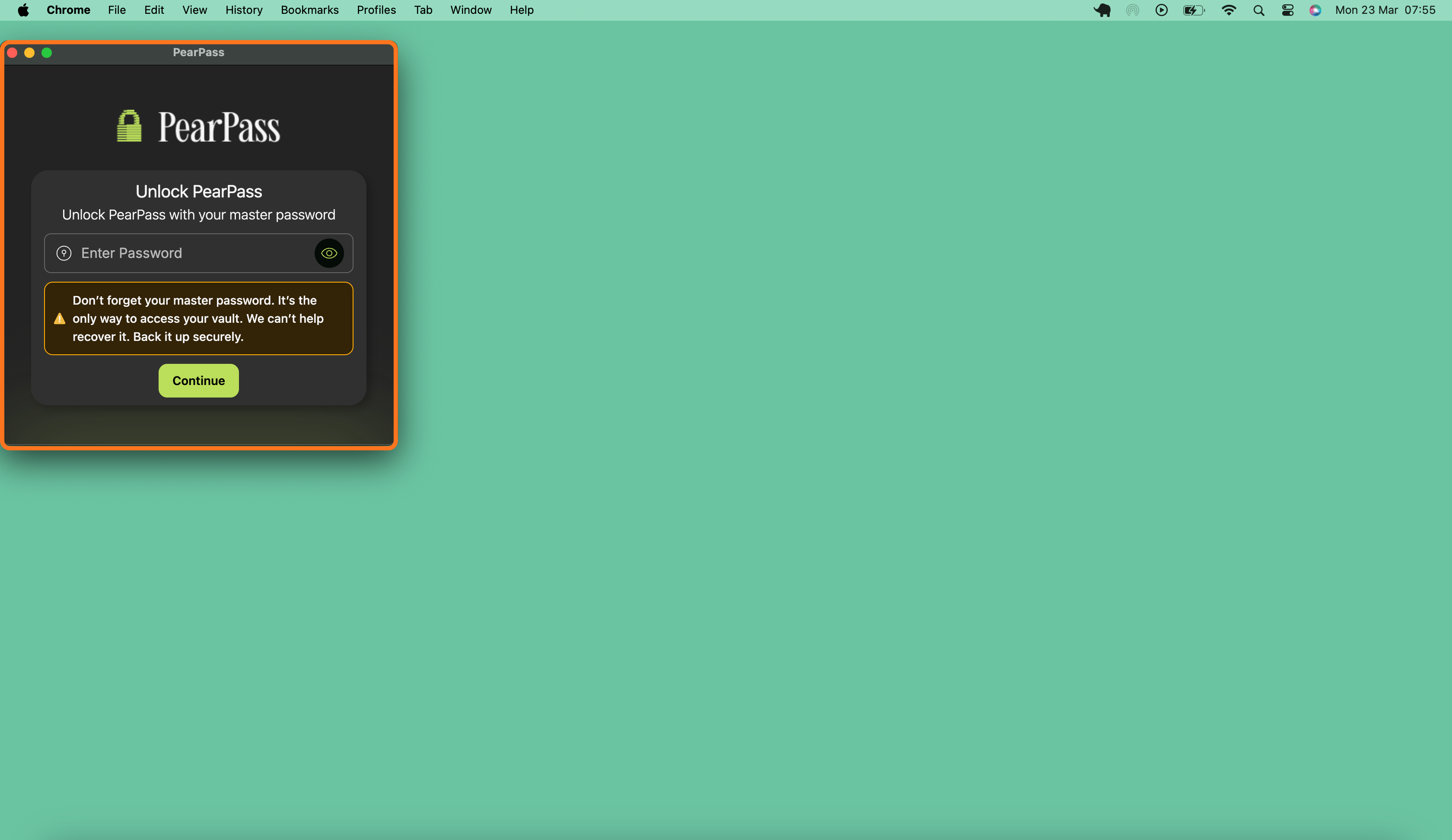
Unlock PearPass
Enter your master password in the Unlock PearPass dialog and click Continue.
Select a vault
PearPass displays your available vaults. Select the vault where you want to save the passkey.

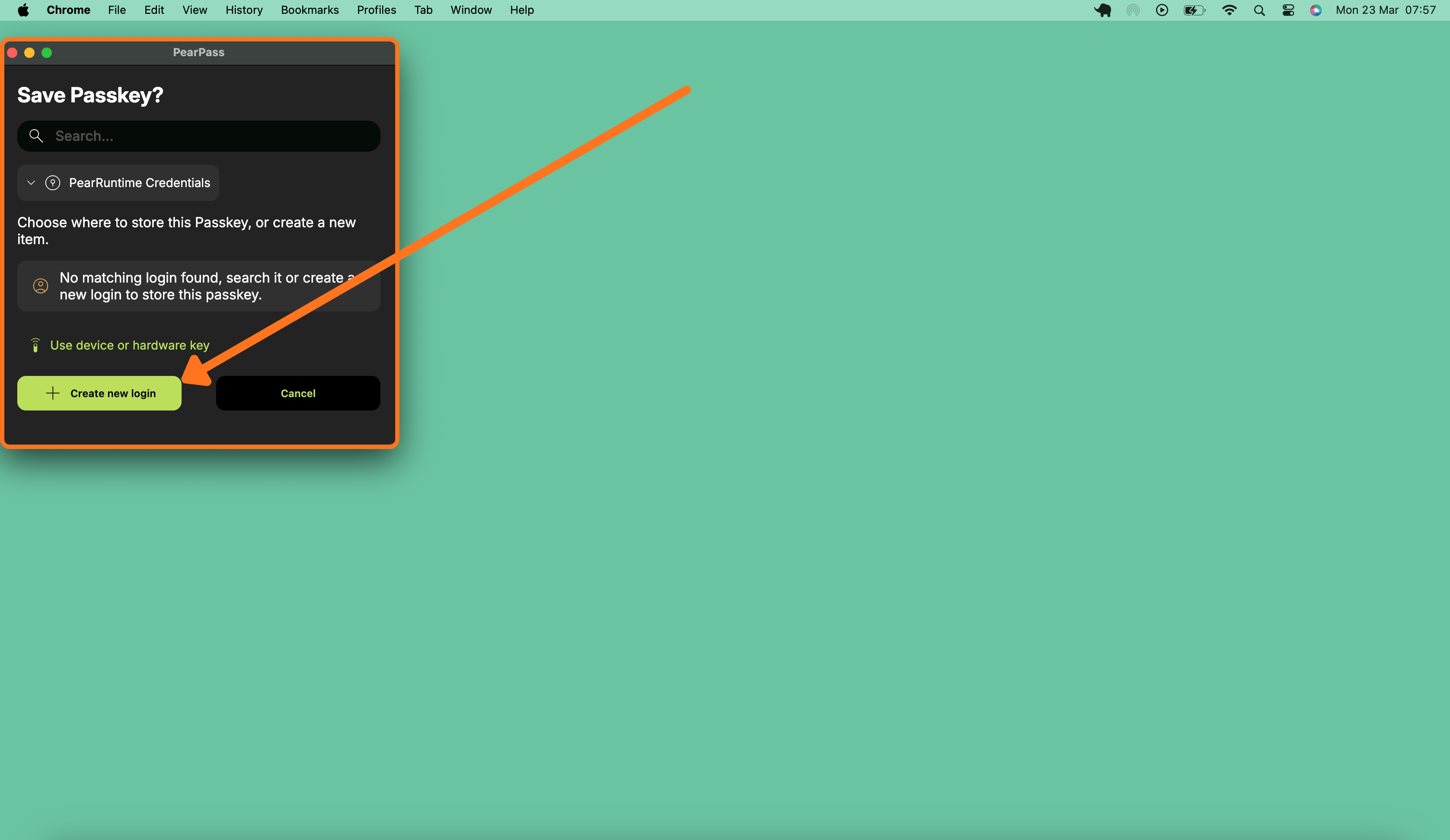
Create a new login
The Save Passkey? dialog opens. Click + Create new login.
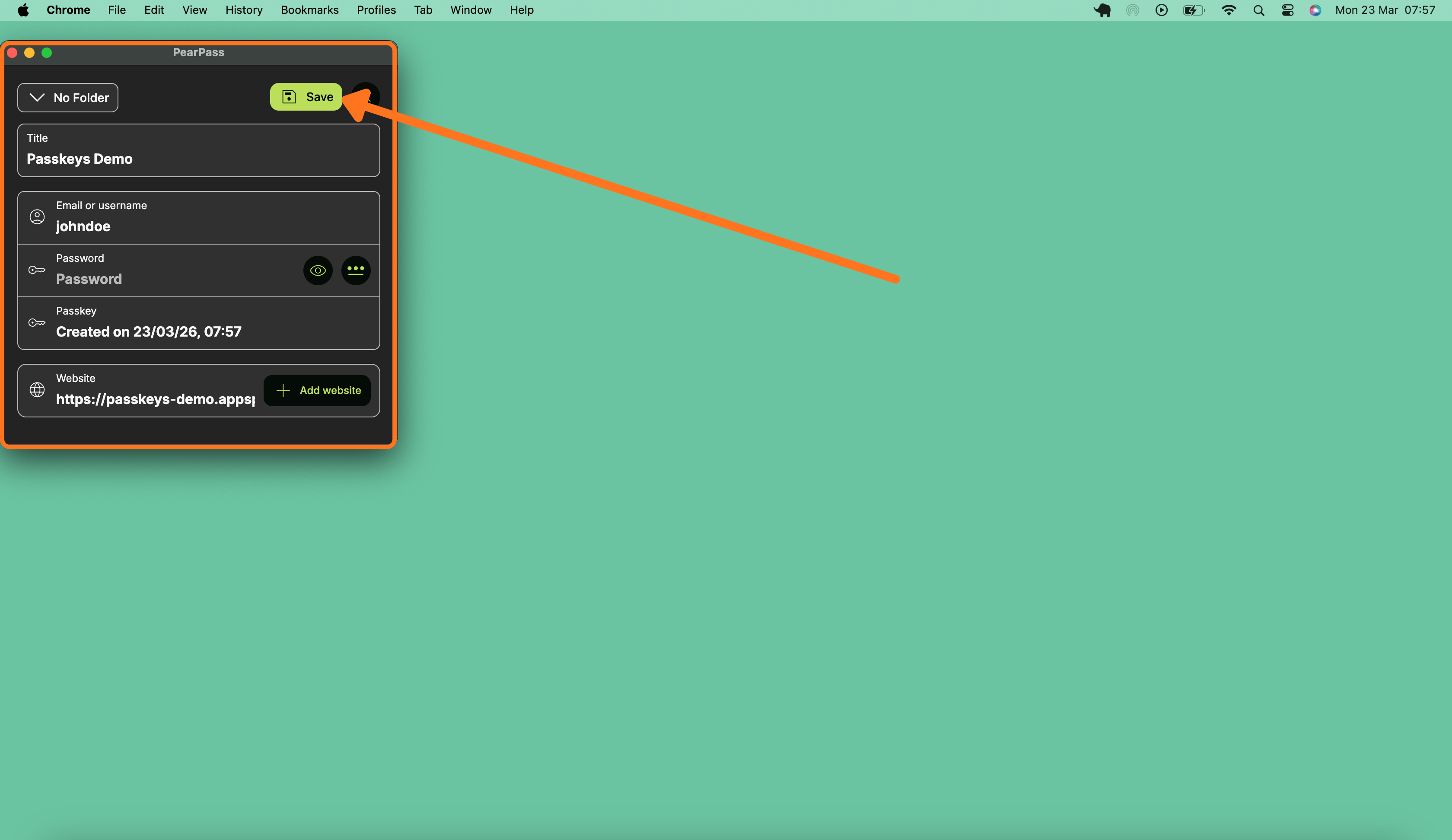
Review and save
PearPass fills in the login information. Review the information and click Save. The passkey is saved to your vault.
Log in with a passkey
Open the login page
Go to the login page of a website for which you have previously saved a passkey. Follow the passkey sign-in flow.
Unlock PearPass
Enter your master password in the Unlock PearPass dialog and click Continue.
Select a vault
PearPass displays your available vaults. Select the vault that contains the passkey.
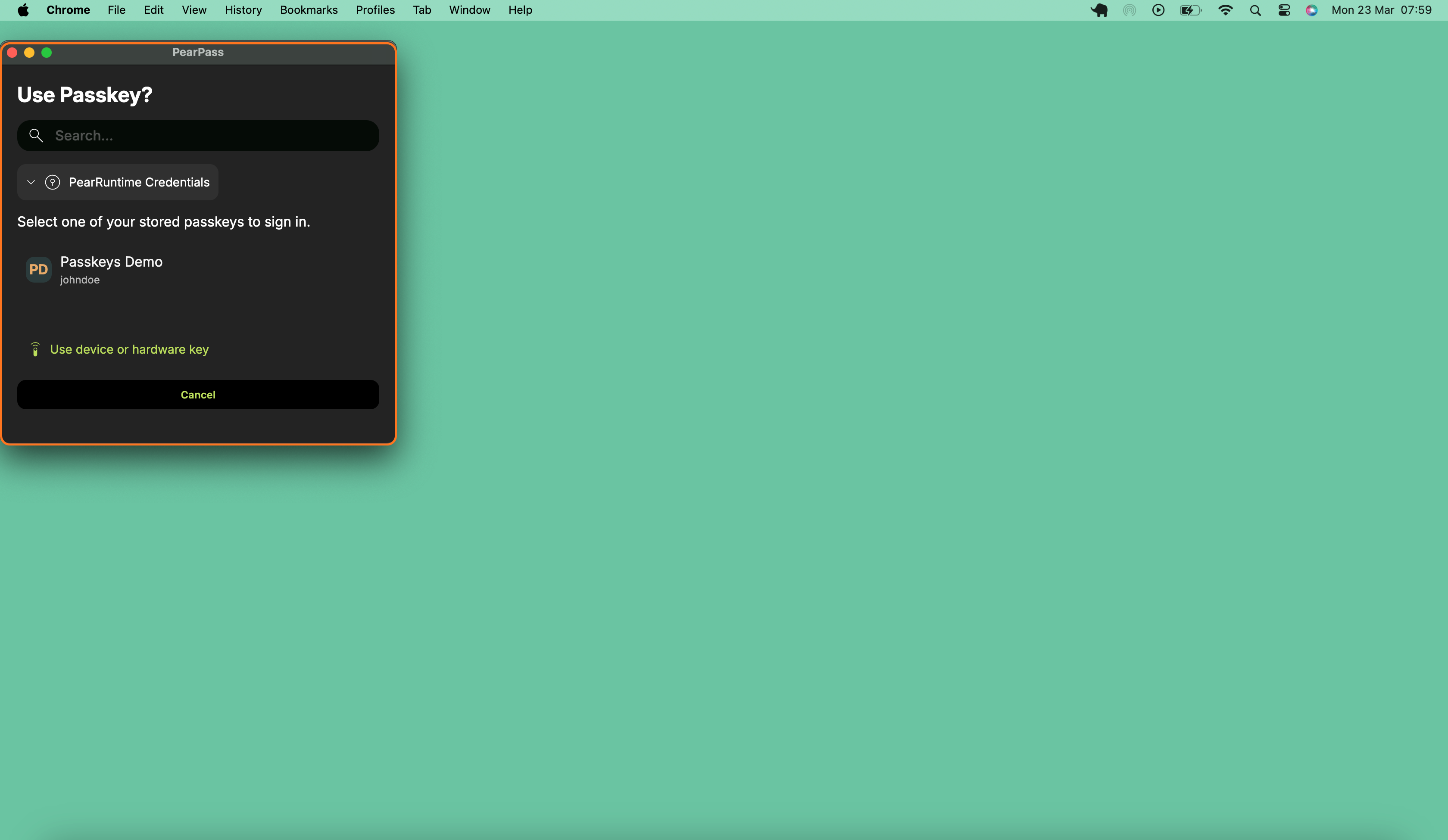
Select your passkey
PearPass displays your saved passkeys. Select the passkey for the current website to sign in.
Save a passkey
Start passkey creation on the website
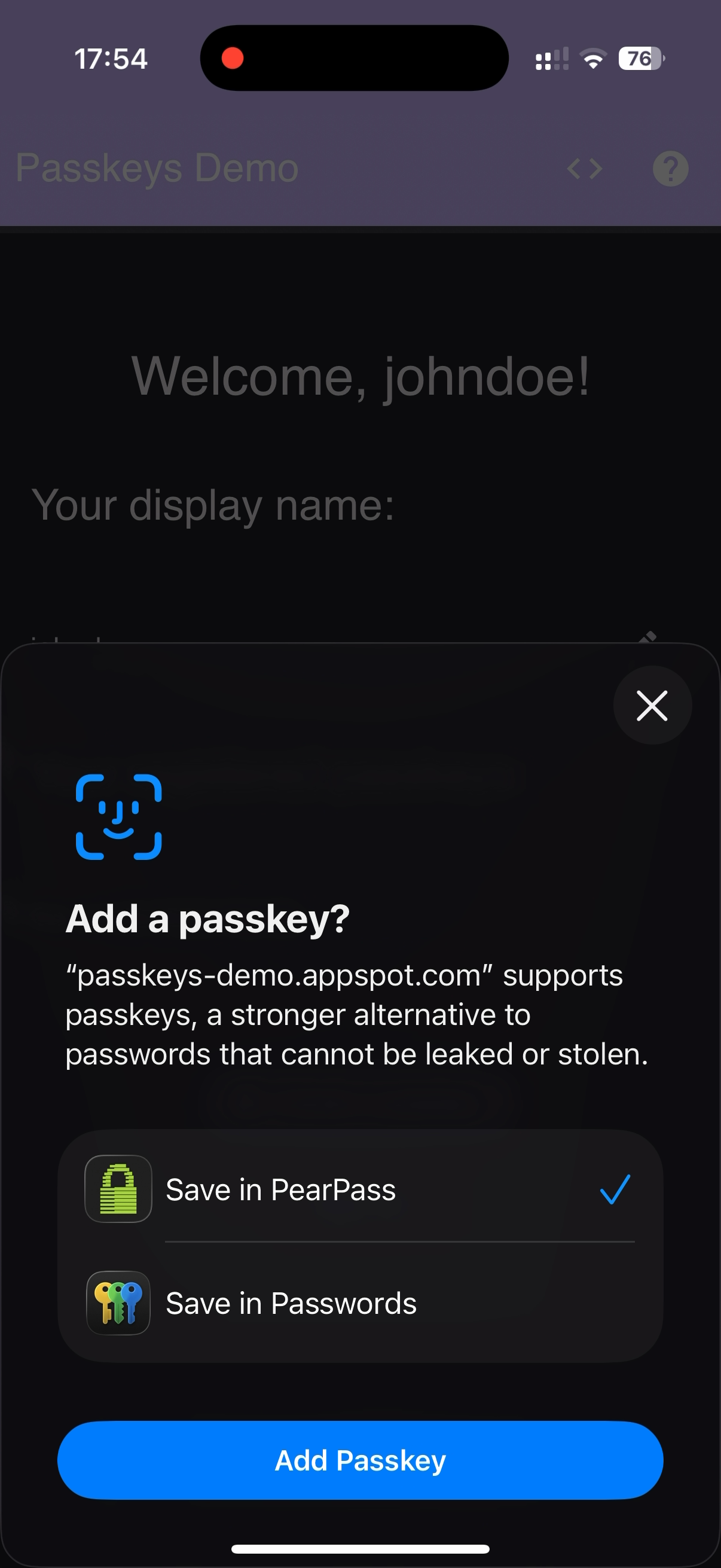
On a website that supports passkeys, start the passkey setup flow. PearPass appears as one of the available options.
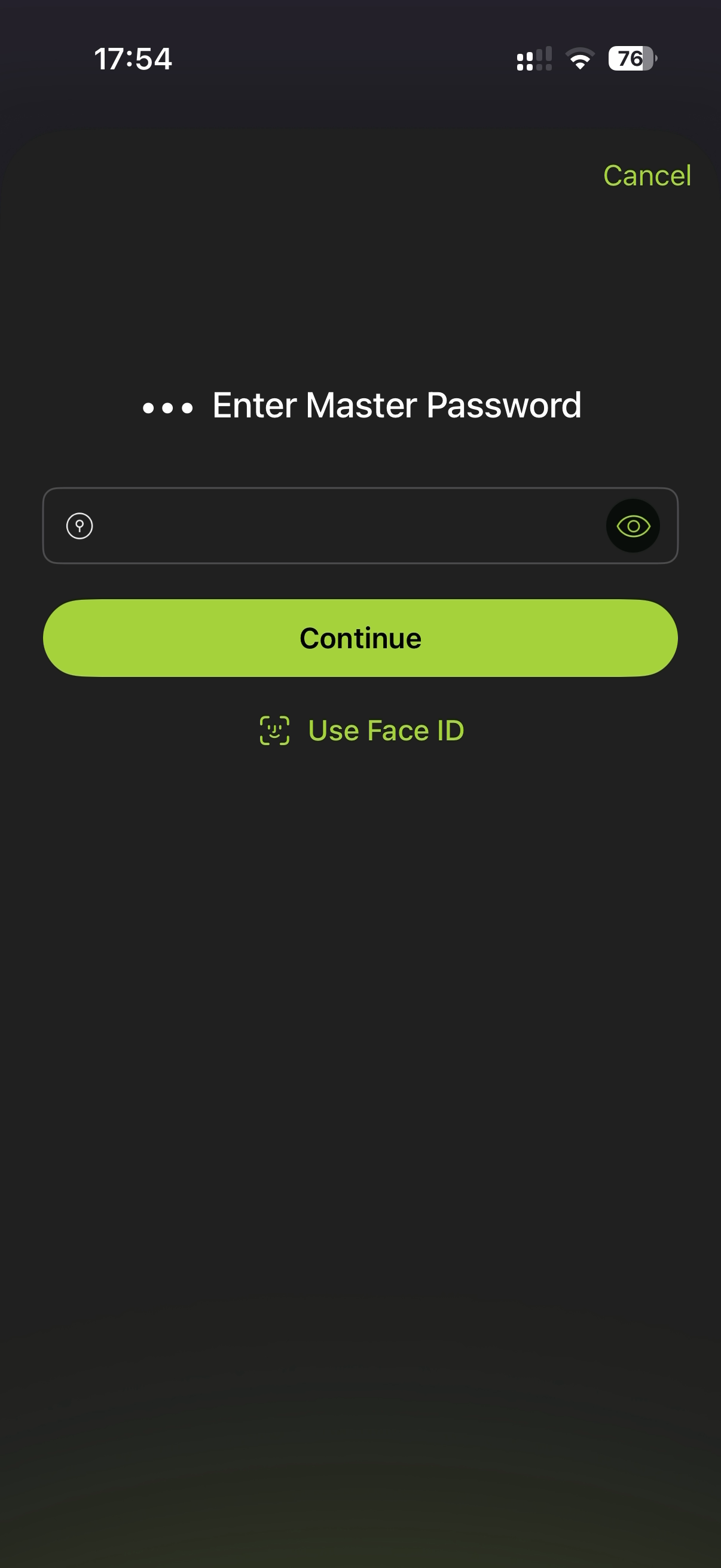
Unlock PearPass
Enter your master password and tap Continue.
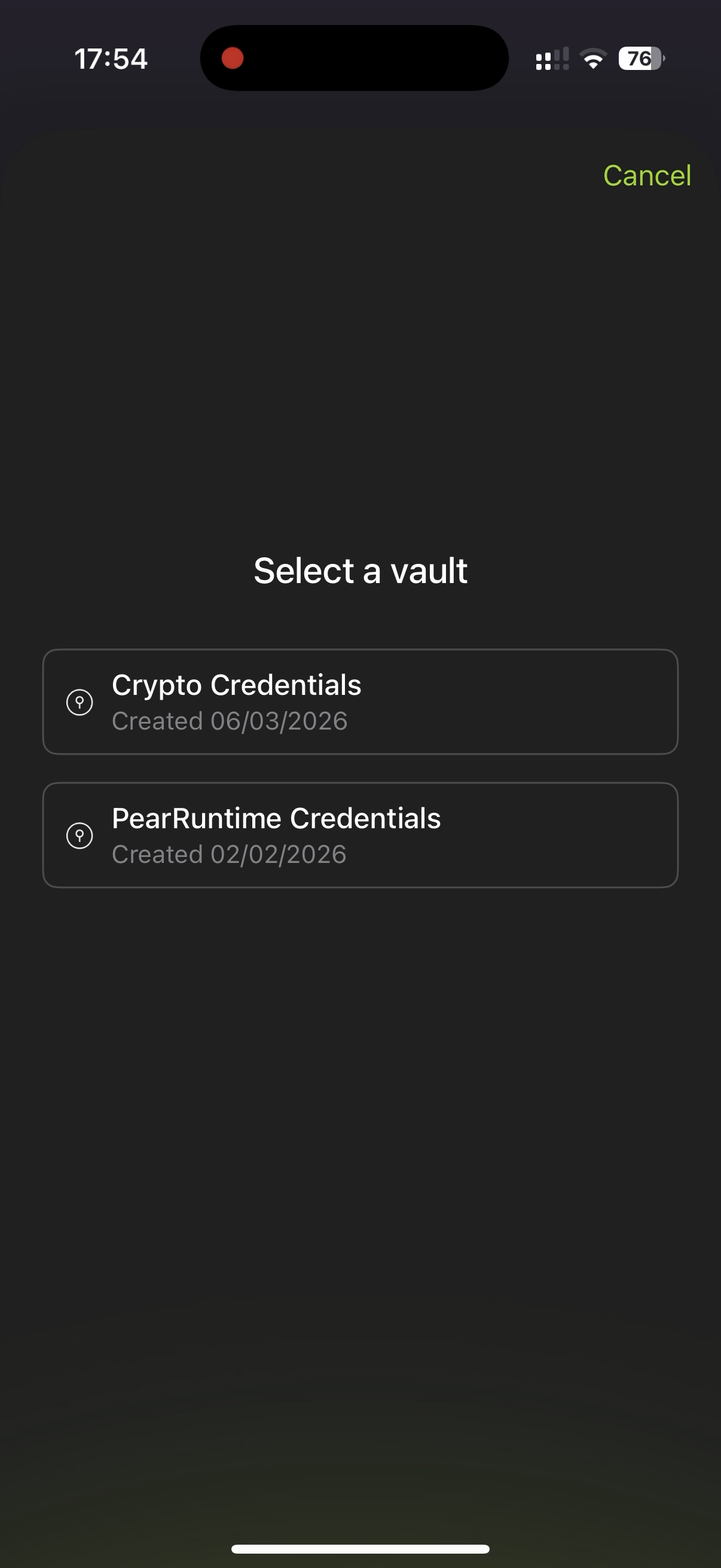
Select a vault
PearPass displays your available vaults. Tap the vault where you want to save the passkey.
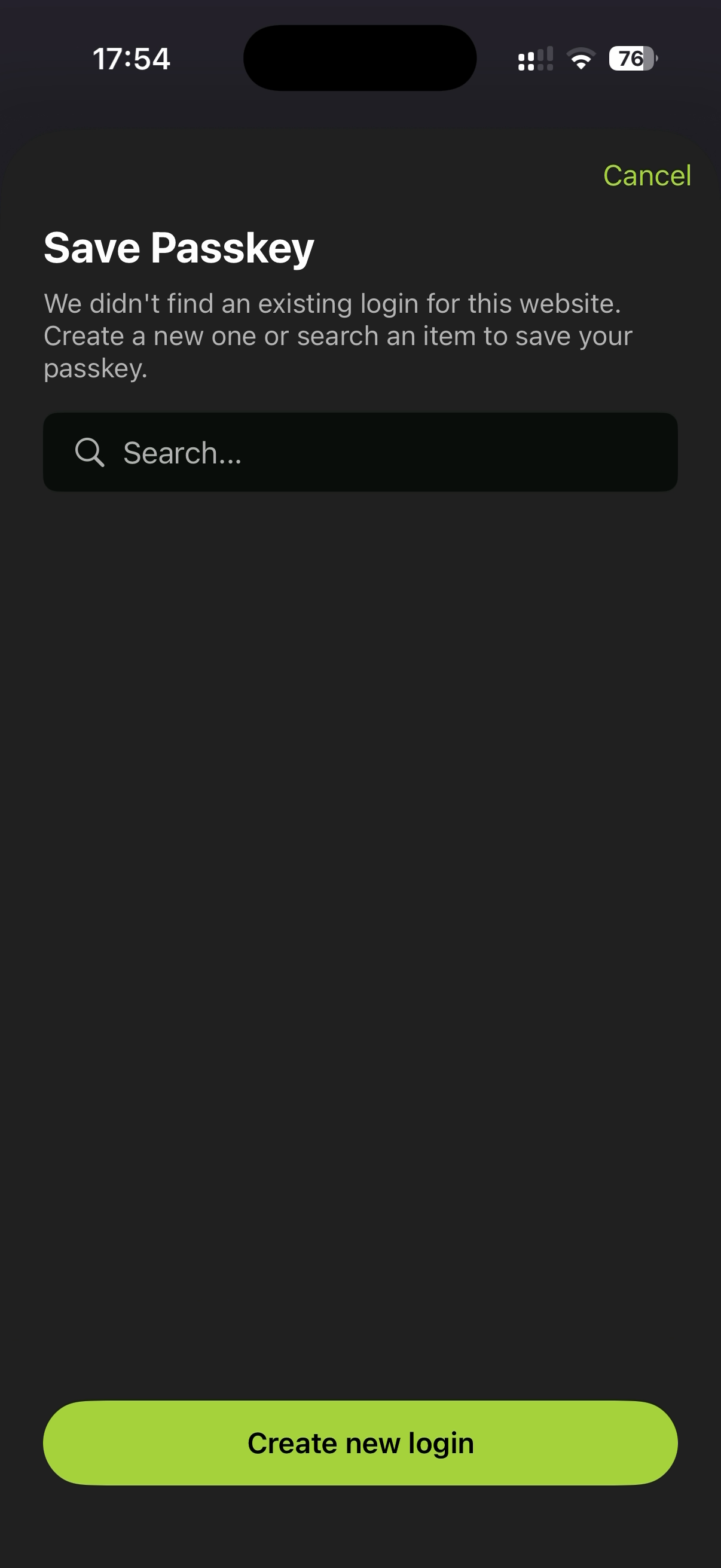
Save the passkey
Tap Create new login.
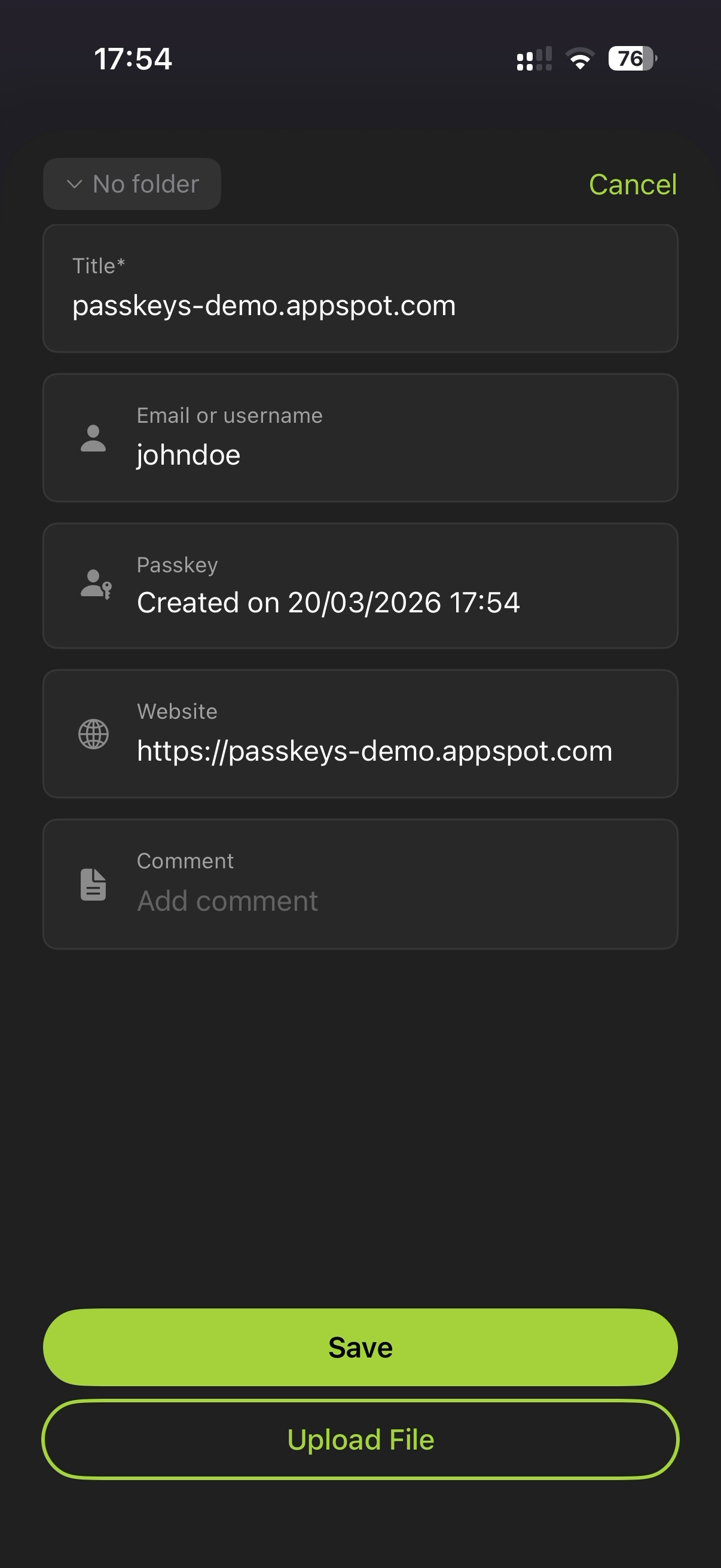
Review and save
PearPass fills in the login information. Review the information and tap Save. The passkey is saved to your vault and you are returned to the website.
Log in with a passkey
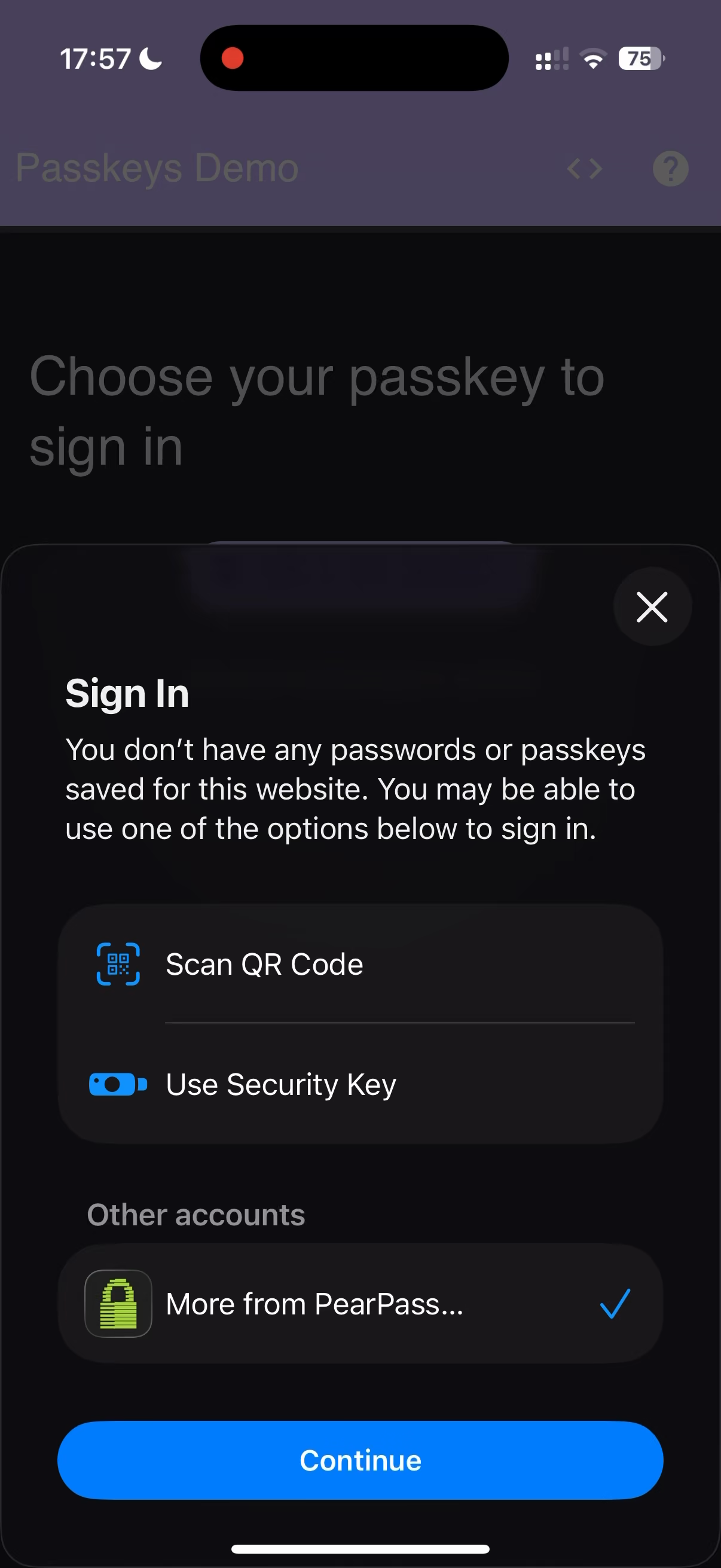
Open the login page
Go to the login page of a website for which you have previously saved a passkey. Follow the website's Log in with passkey flow. When the system passkey prompt appears, select PearPass.
Unlock PearPass
Enter your master password and tap Continue.
Select a vault
PearPass displays your available vaults. Tap the vault that contains the passkey.
Select your passkey
PearPass displays your saved passkeys. Tap the passkey for the current website to sign in.